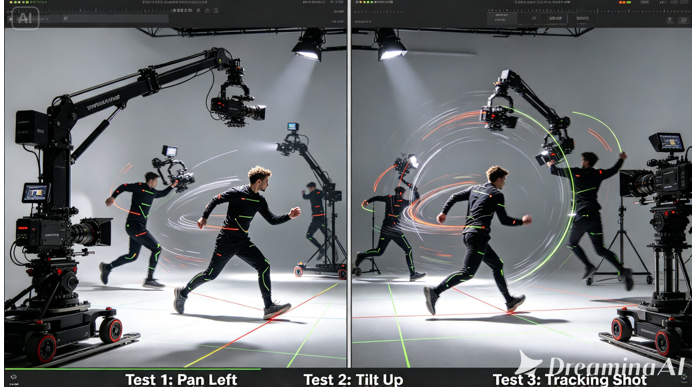
A camera move can make a shot feel expensive or make it feel off, and you rarely know which until you see it in motion. That is exactly where Seedance 2.5 Draft shines. Dreamina’s latest and most advanced video generation model lets you preview a shot at 480p, pick the take that moves the way you imagined, and then render a fresh native 1080p final.
Whether you begin with a text prompt sequence from a single reference frame, you can rehearse the camera path first and spend your full-resolution budget only once.
Why Camera Moves are so Hard to Judge on Paper
A written brief can say “slow push-in,” but it cannot tell you whether that push feels graceful or drifts awkwardly past your subject. Camera work lives in timing, speed, and framing, and a still frame hides all three. A tracking shot might open beautifully and lose its subject halfway through. The only reliable test is watching the whole movement as a sequence, which is why a preview-first workflow in Dreamina makes so much sense for ambitious shots.
Meet Seedance 2.5 Draft Mode in Dreamina
Seedance 2.5 Draft mode splits generation into two separate tasks: a quick 480p preview, then a final render you commit to later. Here is what stands out for camera-heavy work.
Preview the whole move at 480p
Check the camera path from the first frame to the last before spending your final-render budget. You see speed, framing and rhythm, not just a pretty still.
A fresh native 1080p final
The final is not an upscale of your preview. It is a new generation that develops finer lighting, texture and material detail while following your chosen Draft.
Staging that stays aligned
Composition, subject motion and camera movement stay closely aligned between the selected Draft and the final, so the move you approved is the move you get.
Faster finals
In engineering tests, 10-second Drafts averaged as little as about 70 seconds, and final generation was 39.3%-57.7% faster than direct 1080p generation, excluding the time spent making Drafts.
Camera Moves Worth Rehearsing
Some moves are riskier than others, so they deserve extra Drafts before you commit:
- Slow dolly-ins and pull-backs that depend on a steady pace
- Backward tracking shots that follow a walking subject
- Orbits around a person or an object
- Sideways tracks where spacing between people matters
- Reveals that start tight and widen to show the setting
Roll Camera: Three Steps to a Rehearsed Shot with Dreamina
Ready to put the idea into practice? Here is the Dreamina workflow, from rough preview to polished final.
Step 1: Create a 480p Draft
Start a Draft request with your scene description and any image, video, or audio references. Set Draft mode on and choose 480p, the supported preview resolution.
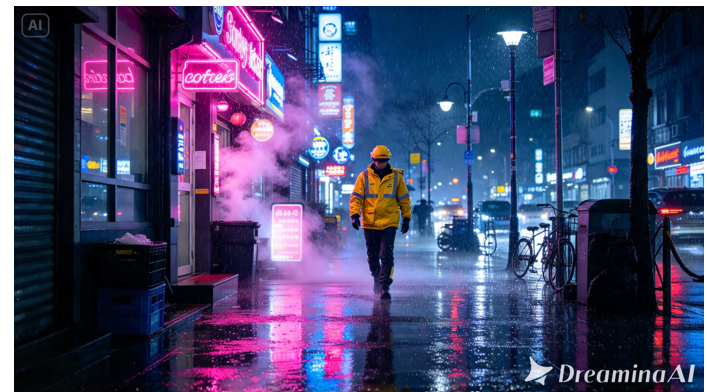
Sample prompt: Create a video of a man walking through a snow-covered alley at night. Wide establishing shot with the camera low, beginning a slow dolly-in. The camera glides to a medium shot as the man passes a steaming vent. Settle on a close-up of the man’s focused face. Audio: soft rain and distant traffic, no music.
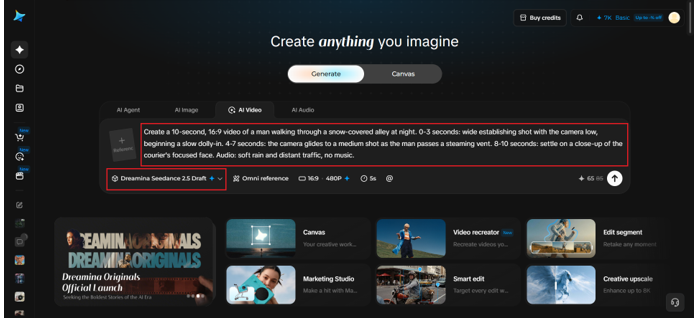
Step 2: Compare takes and choose the shot
Next, fine-tune your settings by selecting a model, Seedance 2.5 Draft. You can also choose the size of the video, for example 16:9 for a YouTube channel or 9:16 for social media Reels. Lastly, select the duration of video you desire and click generate.
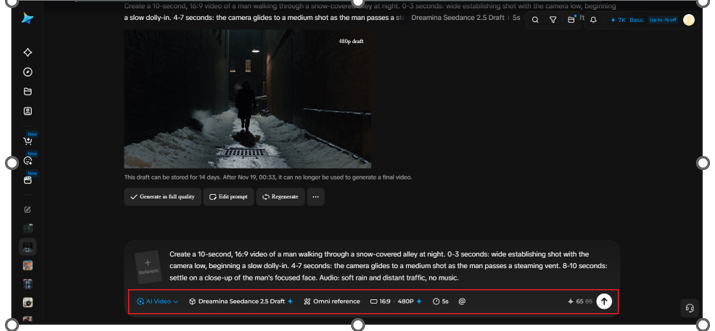
Step 3: Generate and review the final version
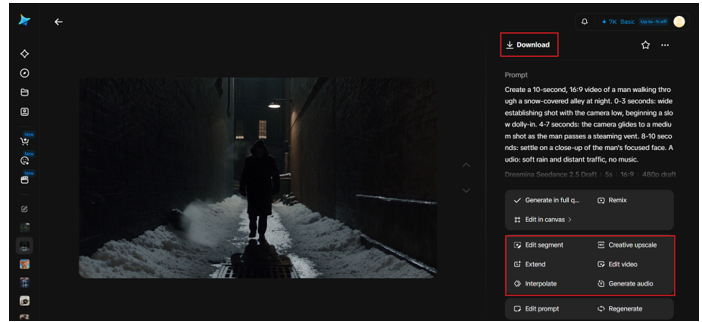
Watch for composition, performance, camera movement, dialogue, audio, and pacing. Refine the prompt or references and create new Drafts when you want a different creative direction. Choose the successful take that best matches your shot intent. Use “Generate in full quality” option for a better quality shot. When the task succeeds, download and review the newly generated final for continuity, lighting, and detail before delivery.
Writing Prompts That Describe Motion Clearly
Specific verbs beat vague adjectives. Say where the camera begins, how it moves, and where it ends, and name the speed, such as “slow” or “steady.” Keep to one camera idea per prompt, and mention what must stay consistent, like the courier’s jacket or the layout of the alley. Changing only one variable between Drafts makes it obvious which tweak helped.
Reading a Draft Like a Cinematographer
Watch each Draft three times: once for the overall feel, once for the camera alone, and once for the subject. Ask whether the move starts and stops smoothly, whether the subject stays framed, and whether the pacing suits the mood. A one-line note per take makes comparing them quick and keeps your decisions honest.
Why Previews Protect Your Budget
In Dreamina’s modeled pricing, a 5-second 480p Draft costs about US$0.514, while a 5-second native 1080p final costs about US$2.843. Over 11 takes, the Draft workflow comes out roughly 73% below rendering all 11 directly at 1080p.
The two stages are billed separately, so one Draft plus one final costs more than a single direct render. The savings appear when a shot needs several attempts, which camera moves often do.
Mistakes to Dodge
- Judging by the opening frame instead of the full clip
- Changing five things between Drafts, so you can’t tell what worked
- Forgetting to save the Draft task ID
- Waiting too long, since Draft IDs expire (14 days for IDs created at or after 10:00 on October 28, 2026, UTC+8)
- Resending Draft inputs in the final request
Who Gets the Most From This Workflow
Filmmakers, ad creatives, social video makers, and anyone planning a shot with a tricky path will feel the benefit most. If your camera move usually takes several attempts to feel right, Draft mode was built for you. Even solo creators can use it to test a move before building a longer sequence around it.
Final Thoughts
Great camera work comes from iteration, and Seedance 2.5 Draft mode in Dreamina makes iteration affordable. Preview at 480p, choose the take that moves right, and let the native 1080p final handle the polish. Try it on your next ambitious shot and see how much more confident your camera feels.